
Creation Rules and Conditionals in Workflows
📘 What they are
Creation rules are conditions that can be set within a workflow template. They allow a task or document to be automatically created when certain conditions are met.
In the workflow template, tasks with a creation rule configured are displayed with a special icon. \\
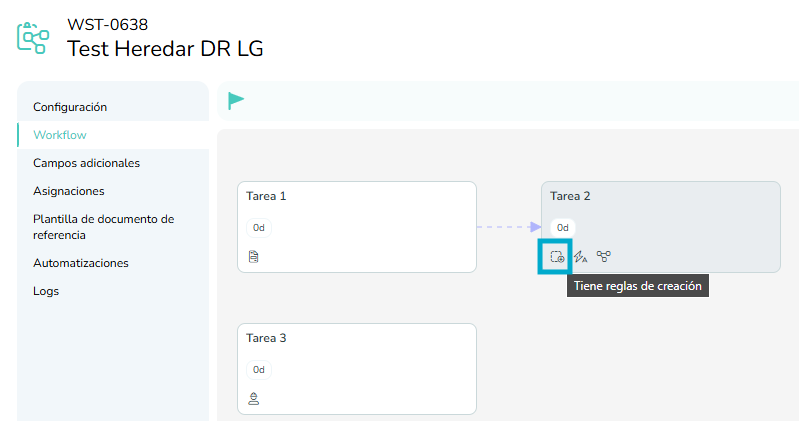
🧭 Where to configure them
- Open the workflow template in “Draft” status.
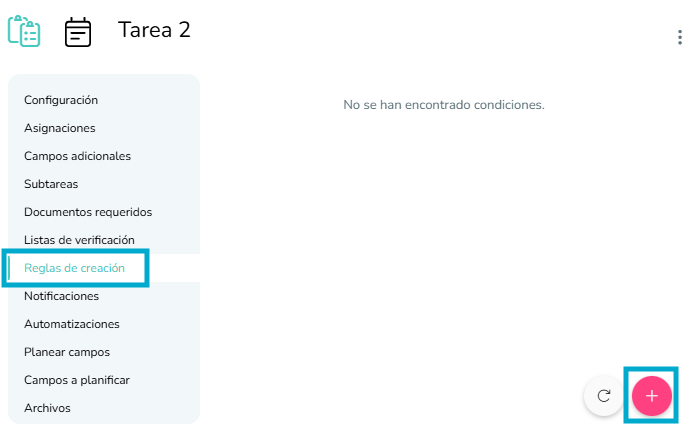
- Go to the full task configuration view.
- In the “Creation Rules” section, click (+) to add a new one.
\\
⚙️ How to configure them
Type of condition
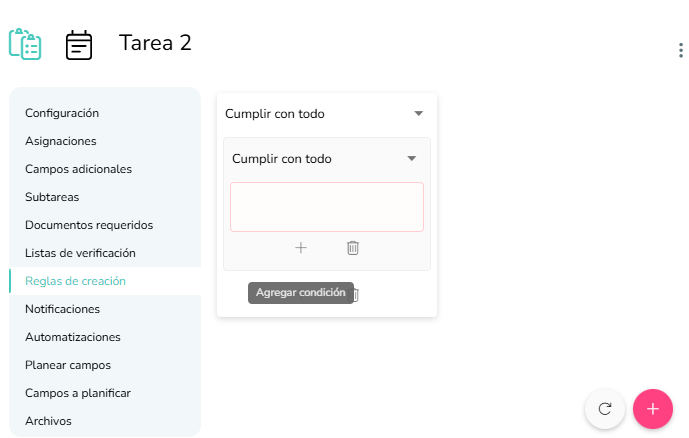
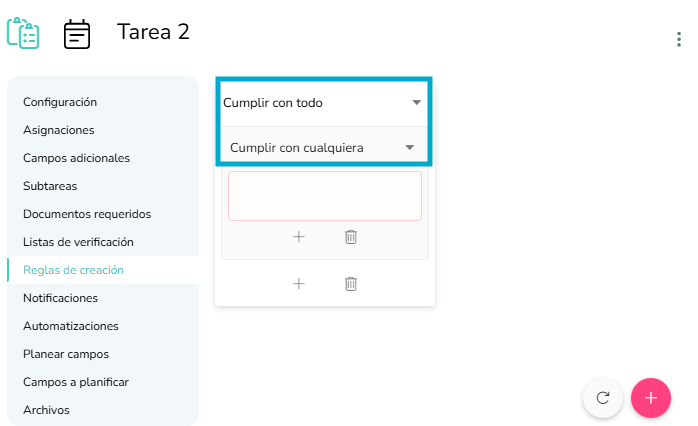
Choose how conditions will be evaluated:
- All required: all conditions must be met.
- At least one: any of the conditions can be met.
You can also create groups of conditions and combine them. \\
🧩 Configuring conditions
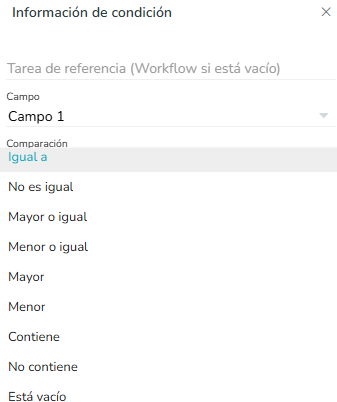
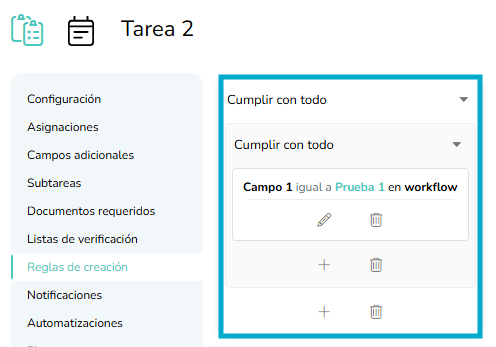
1. Evaluate additional workflow fields
- Leave the “Reference task” field empty.
- Select the field you want to evaluate.
- Choose the criteria accordingly.
- Define the operator:
- Equals / Not equals
- Greater than / Less than
- Greater or equal / Less or equal
- Contains / Does not contain
- Is empty / Is not empty
\\
2. Evaluate fields from another task
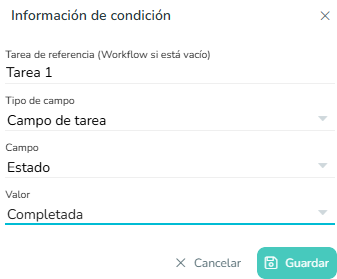
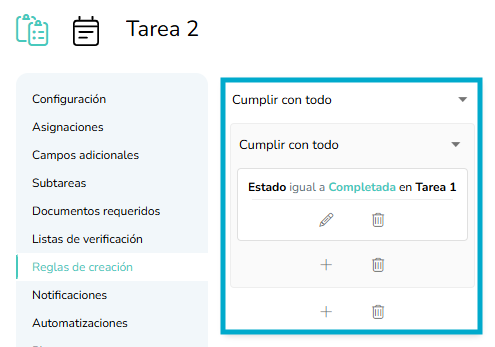
You can create rules that are based on values from other tasks in the workflow.
- Select the evaluation task.
- Choose the field to compare (status, project, subproject, or additional task field).
- Define the criteria and operator as above.
\\
💡 Example
You can configure a “Final Inspection” task to be created automatically when:
- All installation tasks are marked as Completed, and
- The Project type field equals FTTH.