Forms Templates
To create a template we must have the necessary permissions for it; then as a first step define what information we need to include in the form, if we already have a model of the document, doc, excel, pdf, they serve as a starting point.
The next step is to create the template and load each question, selecting the type of data that will be entered to complete it. It is possible to define groups of questions to better organize the form. A very useful configuration is the "Display rule", with it you define the question or the group that is enabled or not based on the previous answer. For example, a question "Risk site?" type Yes/No, it will only enable the block of questions corresponding to risky sites if the answer is Yes.
In this way we achieve a dynamic form that adapts based on the user's responses.
The data to complete in the General Info section are:
- Name: ID of the template.
- Version: Template version.
- Responsible: User responsible for the project.
- Approval process: If required, the approval template will be appointed
- Operational Unit: Working group in charge of the project.
- Client: Sytex user company.
- Project: Project where the form was retrieved.
-
Configuration
- Can add form in field: Allows creating forms based on the template from the mobile version of Sytex® to those users who have the appropriate role.
- Initial state of the Form: We will always leave the initial state of the Open form.
Note > It should be remembered that if no option is selected, the form starts in the To Confirm state by default.
- Automatically send when going to review: checking this optional, the form makes an automatic status change, when the assigned user sets the status to In Review, Sytex® sends it automatically.
- Auto Approve on Submit: similar to the optional above, when the form is in the Submitted state, Sytex® changes it to Approved.
- Require login in document view: the user must log in to Sytex® in order to access the document view.
- Disable notifications for these forms: it will prevent form pushes from reaching the assigned user or other notification settings made to the template.
- Show avatar: whether client or operating unit, the profile image will be displayed in the form document.
- Description: this field is reserved for the creator of the template to specify and transmit instructions related to the completion of the form to the assigned user.
- Comments: reserved field to include any other information that is considered important but that is not related to the description of the task.
It is very important to leave the form code uncompleted, it is generated automatically.
[[https://www.loom.com/share/4f9da2fa18e047de99ad788072aa9c34]](https://www.loom.com/share/4f9da2fa18e047de99ad788072aa9c34)
Template
Template is the form model where you define what data and how it will be requested from users each time a form is processed. After saving the General Info data, the option to complete the Template will appear.
Data can be grouped into multiple categories, and groups and subgroups within each category can also be created for your organization. Each entry requested in the template can have a question, an indication that serves as a guide for the user and the type of data to be saved can be specified.
The possible values in each field are Entry, Date, Text Area, Action, Yes/No, Options, Location, IP Address, Code Scan, Multi-entry, File Upload and Signature.
| ## Ticket type | ## Detail |
| Entry | It allows the option of entering text up to 150 characters, without the possibility of making paragraphs. |
| Date | Allows the option to enter the date, or date and time from mobile. |
| Text area | All kinds of questions that can be answered with text that exceeds 150 characters or require different paragraphs. |
| Action | Designed for the request for multimedia type responses. |
| Yes/No | It only admits basic answer type Yes or No. |
| Options | Multiple choice question, with one or more possible options. |
| Location | Allows to take the location with the mobile GPS |
| IP Adress | To load the IP address, netmask and gateway. |
| Code scan | Allows you to use the mobile camera as a barcode reader. |
| Multi-input | Multiple text-type questions in a single entry. |
| File upload | Uploading an attachment of a preselectable extension type. It is very important to define what file extension is allowed to upload. |
| Signature | Allows you to enter your personal signature using the touch screen or mouse. |
Conditionals can be activated for each entry that will specify if the question is mandatory, if they are just numbers, if it can be edited on a PC, if it can be edited on the cell phone, if it can be attached to a crowd, only include photos from the mobile camera and define amount.
| ## Entry conditionals | ## Use |
| Required | The answer is required to close the form. |
| Only numbers | Restrict the answer to only numbers. |
| Editable only on desktop | Enable editing only via PC. |
| Editable only on mobile | Enable only responses via mobile. |
| Allow media | Enables the inclusion of multimedia. |
| Only from the mobile camera | Restricts the inclusion of photos only taken from the mobile. |
| Minimum number of photos required | Allows you to select the number of photos that the answer must have at least. |
| Allow comments | Enable the comment field at the end of the question. |
| Add Image | Image that will be shown in the question, it can be a diagram or example that will help. |
| Show only if condition is met | The question will be displayed depending on the answer of a predecessor question. |
[!WARNING] > Note: Each type of question has conditionals specific to the type, for a matter of simplicity, only those of the Entry type are detailed.
On the part of the groups of questions, we have the following entry conditions:
| ## Conditional entry for groups | ## Use |
| Name | Group identification |
| is repeatable | It will generate as many times as indicated in the form, this section of questions. |
| Description | Group specification. |
| Show only if condition is met | The group will appear depending on the answer of a predecessor question. |
| Hide if user is not authenticated | The group will not be displayed if the user is not logged in. |
[[https://www.loom.com/share/cda894ab15324947840cce45ae6cf8af]](https://www.loom.com/share/cda894ab15324947840cce45ae6cf8af)
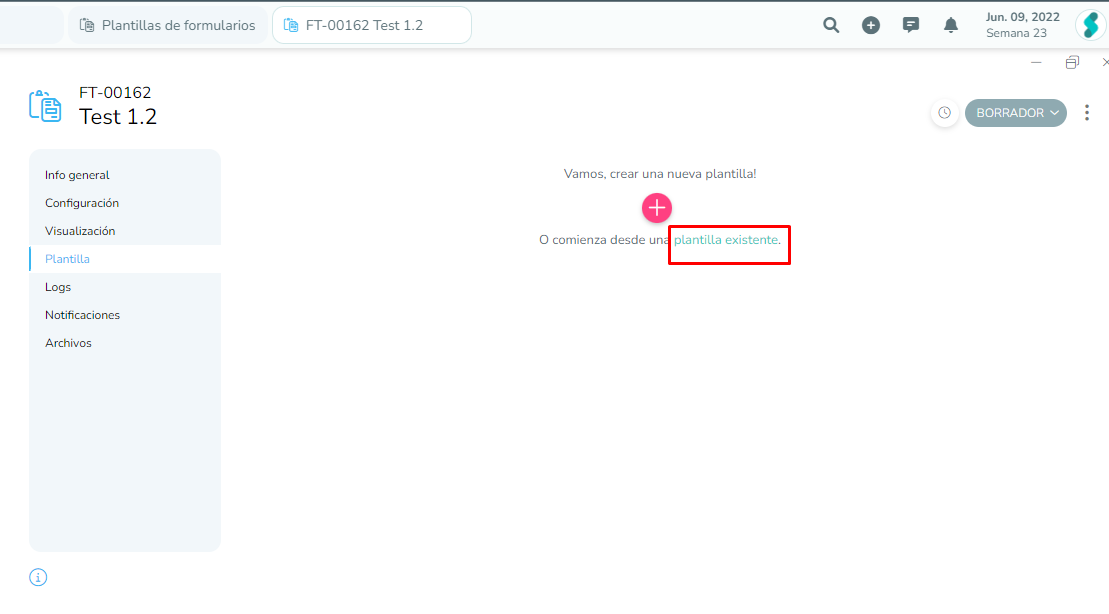
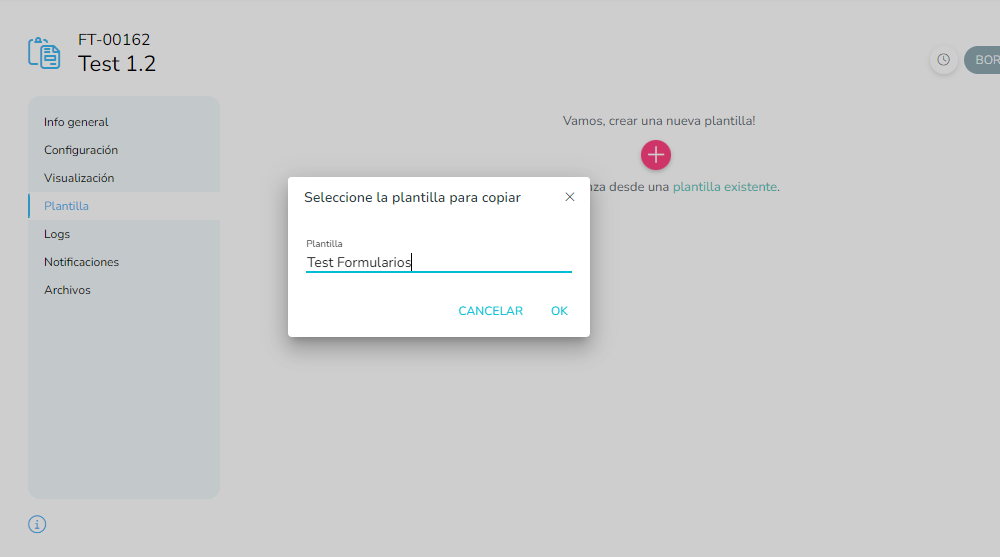
You can also create a spreadsheet from an existing one, that is, by selecting the existing template. Then, we can modify the existing questions or add new ones in it.